 Eisenhour
Guides / Back up your data and move to a new phone
Back up your data and move to a new phone
Eisenhour keeps everything on your phone: there is no account and no server. Your normal iPhone backup, in iCloud or on a computer, already carries the app across when you set up a new phone. This guide covers the other way, one file you export and import (Pro). It is handy as a copy you can see and keep, or when you want to move without restoring a whole phone.
-
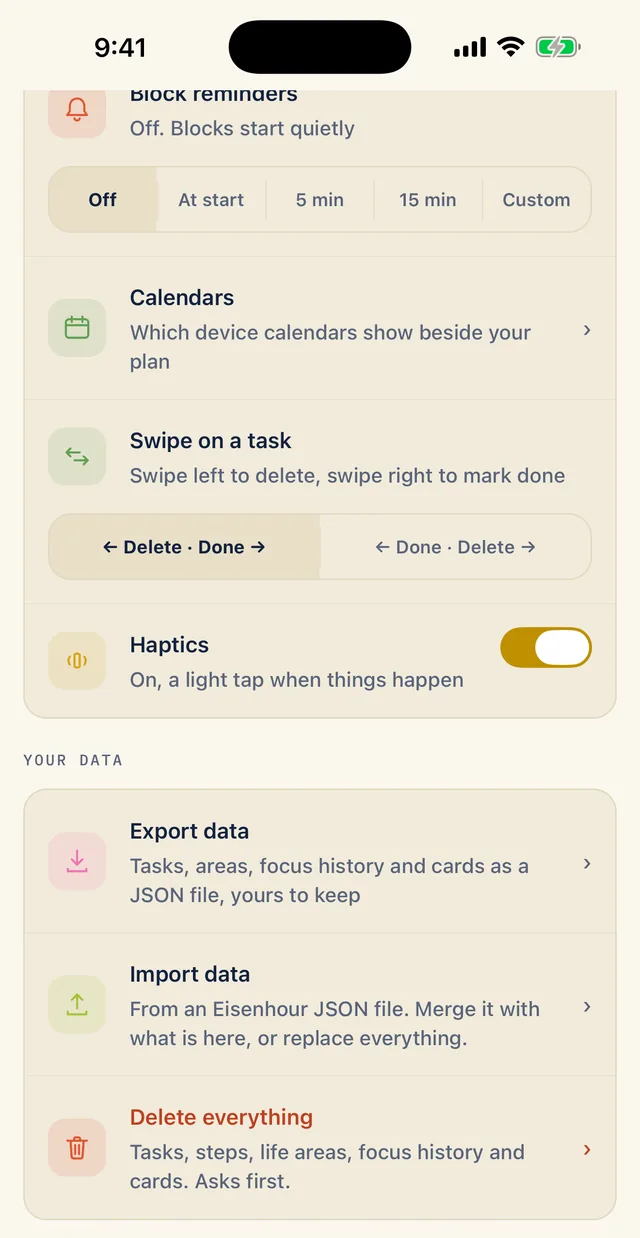
Find Your data in More
Scroll down the More tab to Your data. Export data saves your tasks, areas, focus history and cards as one JSON file. Import data reads that file back, and offers to merge it or replace everything. Delete everything clears the phone, and it asks first.
Export and import are Pro.
-
Export a file
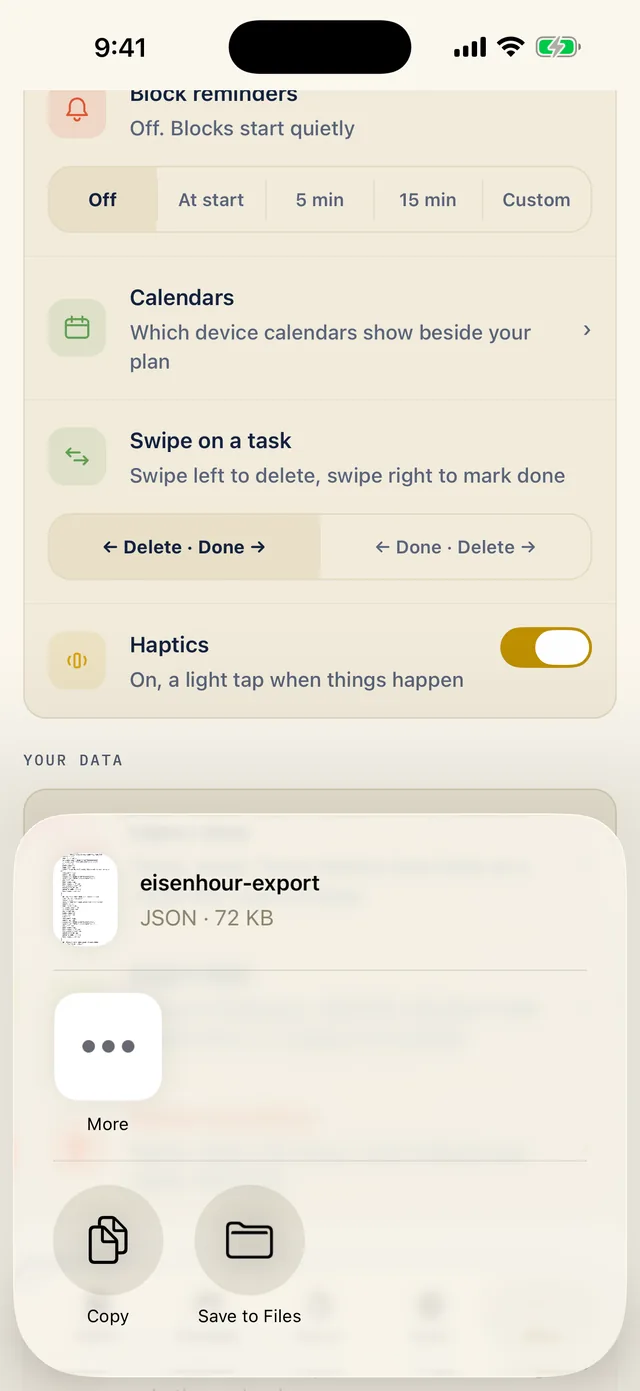
Tap Export data (Pro). The iPhone share sheet offers a JSON file named with the day you made it, such as eisenhour-export-2026-10-11, about 72 KB here. Tap Save to Files and choose a place both phones can reach, such as iCloud Drive, or use More to send it to yourself.
Keep the file somewhere private. It holds your tasks and your card details.
-
Choose the file on the new phone
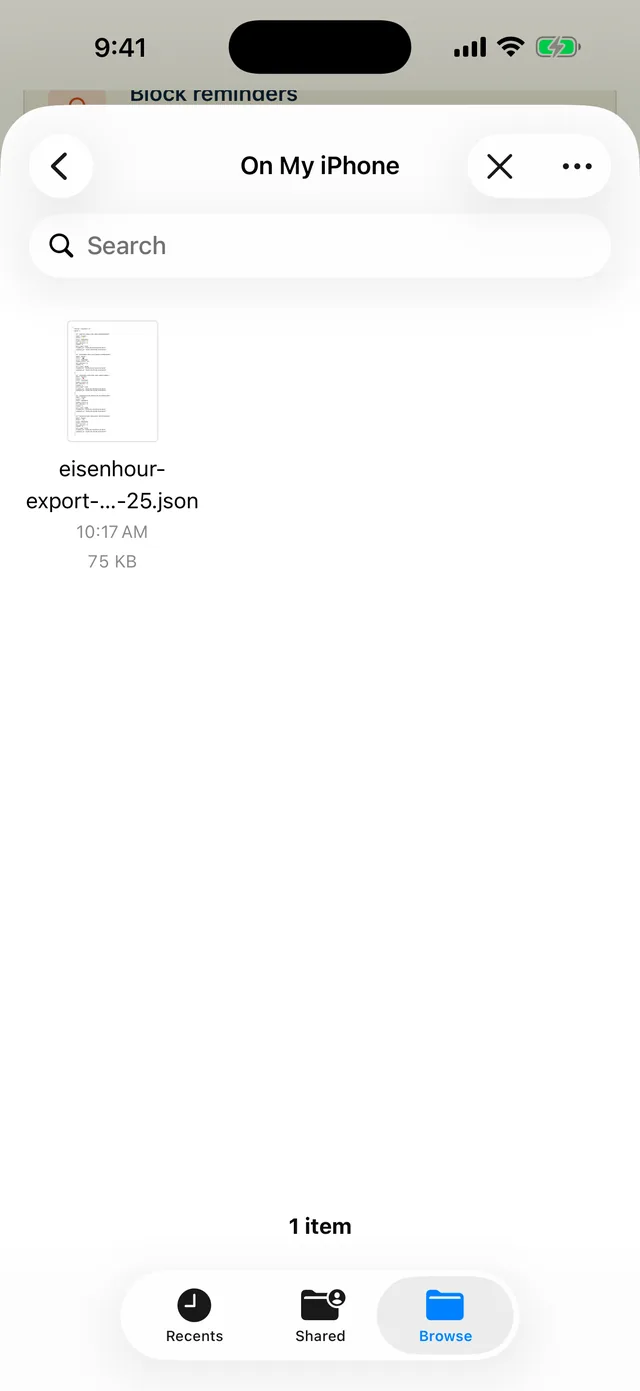
Install Eisenhour on the new phone and open the More tab. If Pro is not active yet, open the Pro screen and tap Restore, at the top left, with the Apple ID you bought it with. Then tap Import data (Pro) and pick the file in the Files picker. Every export is named with the day it was made, so if you have saved more than one, the newest is the one with the latest date in its name.
-
Choose Merge or Replace, then confirm
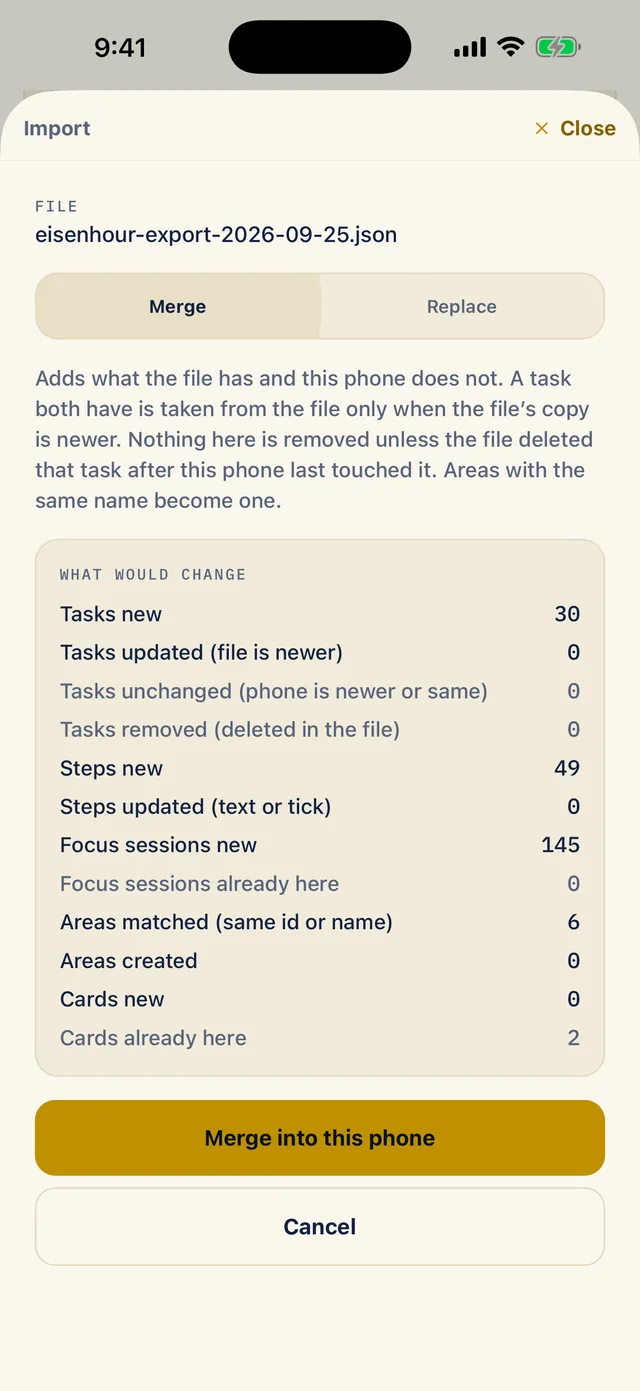
Eisenhour reads the file and shows the Import sheet before it changes anything. Merge adds what the file has and this phone does not. A task both have is taken from the file only when the file's copy is newer. Nothing here is removed unless the file deleted that task, or a logged focus session, after this phone last touched it. Areas with the same name become one, and take the file’s name, emoji, colour, targets and hidden setting when the file’s copy is newer, or when the area on this phone is an untouched starter.
Replace swaps everything on this phone for the file: tasks, steps, areas, focus history and cards. Copies on your calendars are removed. This cannot be undone.
The What would change list counts tasks, steps, focus sessions, areas and cards, so you can check the numbers first. Then tap Merge into this phone, or Replace everything. On a new phone with nothing of yours on it yet, choose Replace: it brings over everything exactly as it was, including your life areas’ weekly targets, colours and emoji. Merge is for combining two phones that both have data you want to keep.