 Eisenhour
Guides / Make and share a business card
Make and share a business card
Eisenhour includes a small card you can hand to someone: your name, title and contact details, plus any links you like. Share it as a picture, or as a PDF whose phone number, email and links stay tappable. The card is stored on your phone like everything else, and the one in these screenshots belongs to an invented person.
-
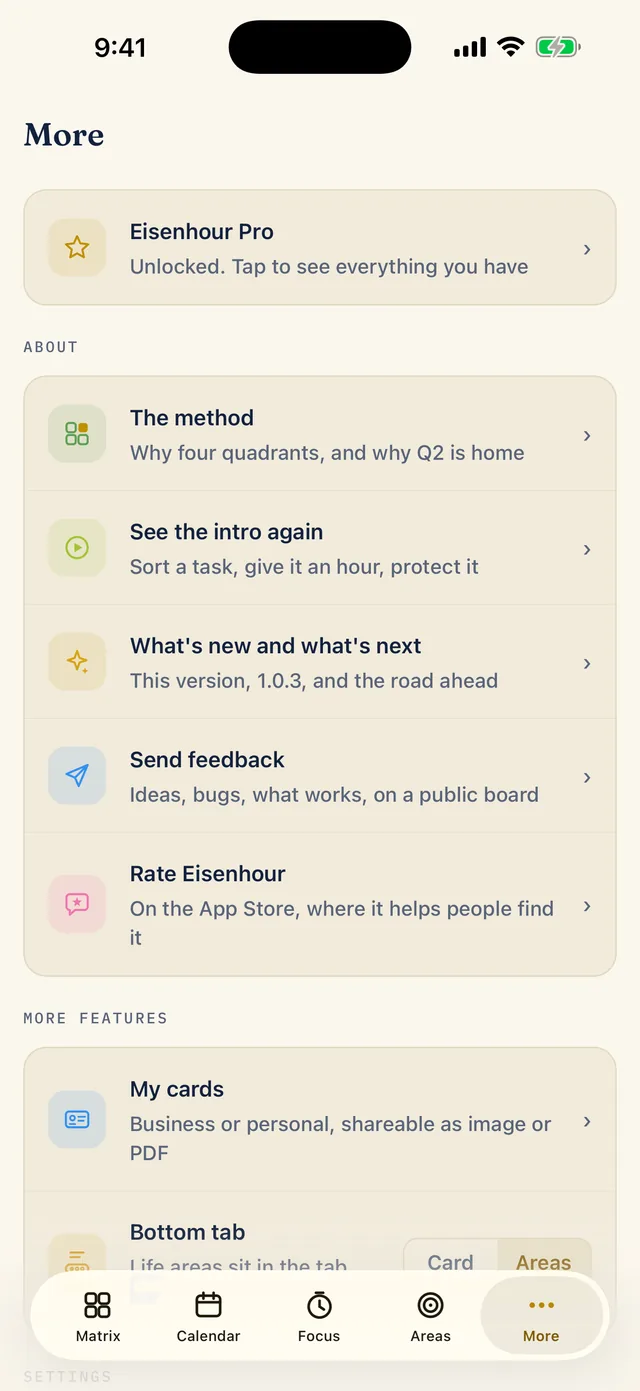
Open My cards from More
Tap the More tab and choose My cards. The row under it, Bottom tab, decides what sits in the fourth slot of the tab bar, Areas or Card. Switch it to Card and your card gets its own tab, and Areas moves into More.
-
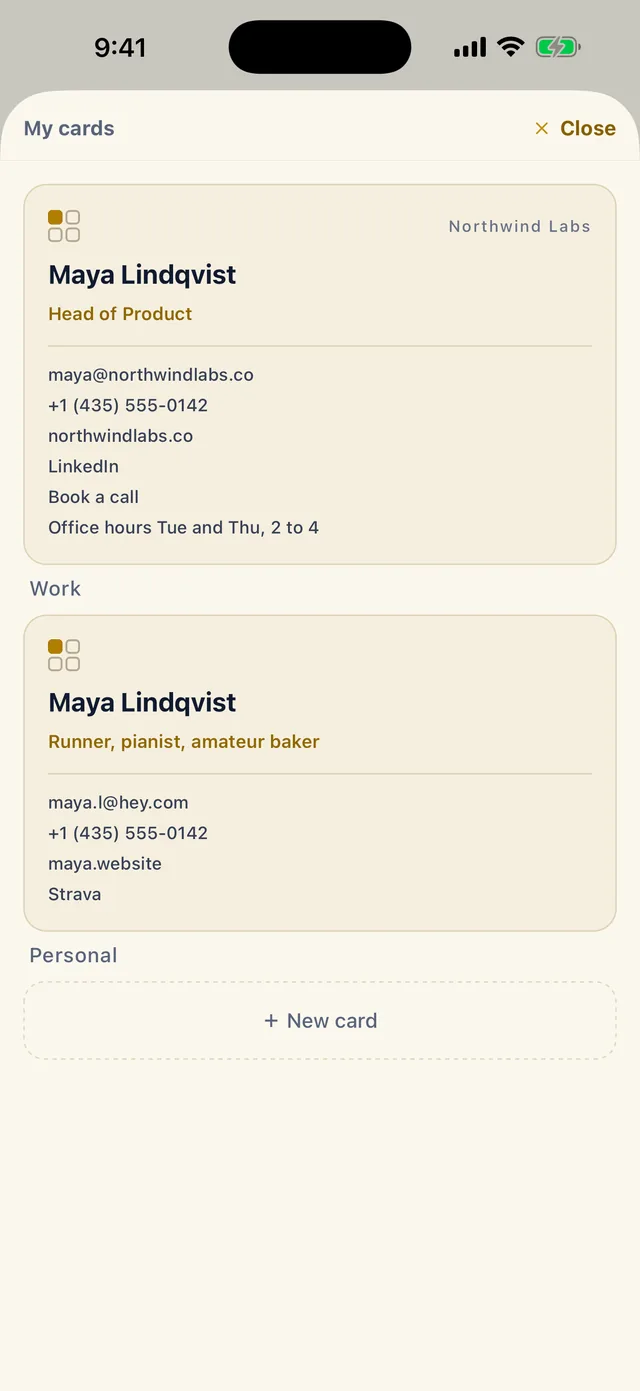
Start a card, or pick one
My cards lists your cards, each with its name underneath. Here there are two, Work and Personal. Tap a card to edit it, or tap New card to make another. The free version includes one card; more than one is a Pro feature (Pro).
-
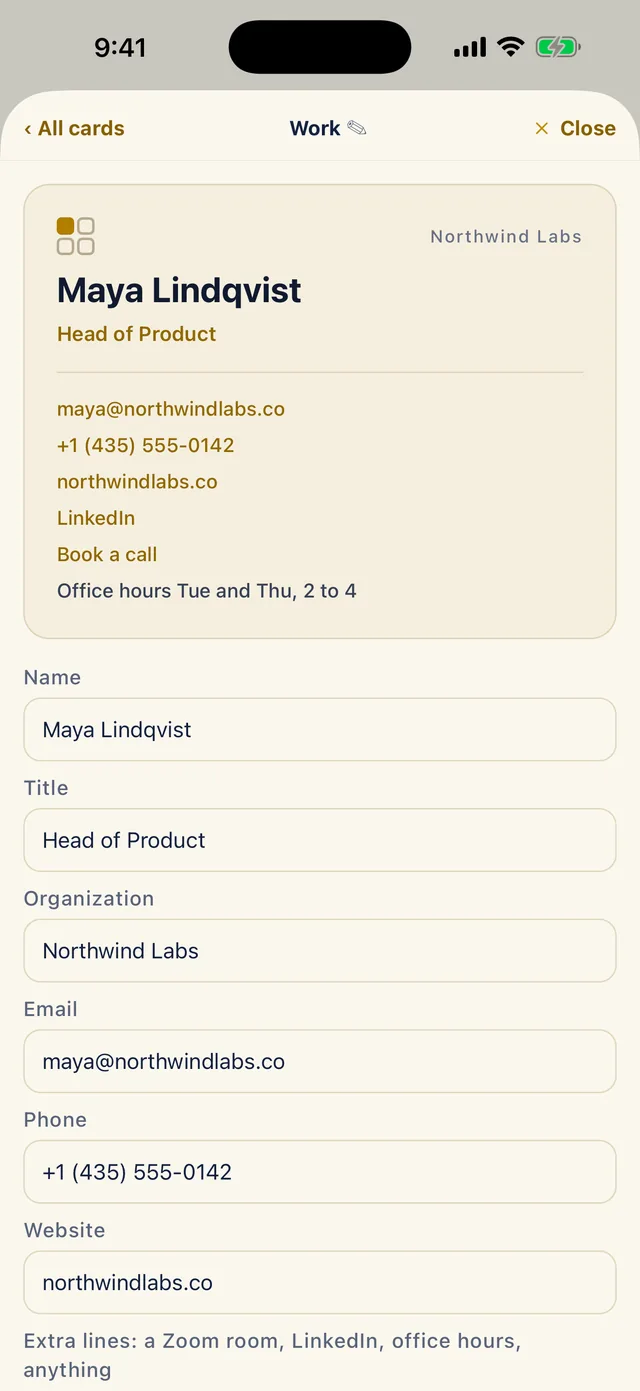
Fill in the card
The card at the top of the editor is a live preview, so you see it change as you type. Fill in Name, Title, Organization, Email, Phone and Website. In the preview, emails, phone numbers and web addresses show in gold, and plain text stays dark.
-
Add extra lines and links
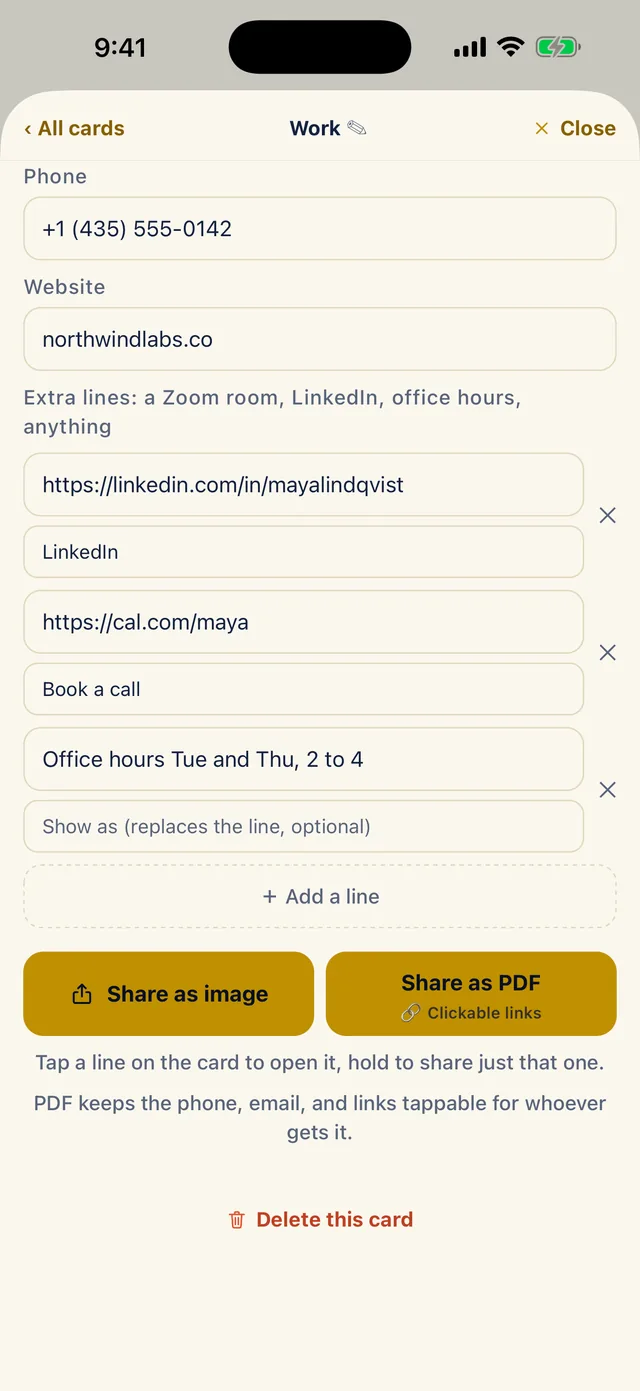
Scroll down to Extra lines, meant for a Zoom room, LinkedIn, office hours or anything else. Tap Add a line and type the text or a link.
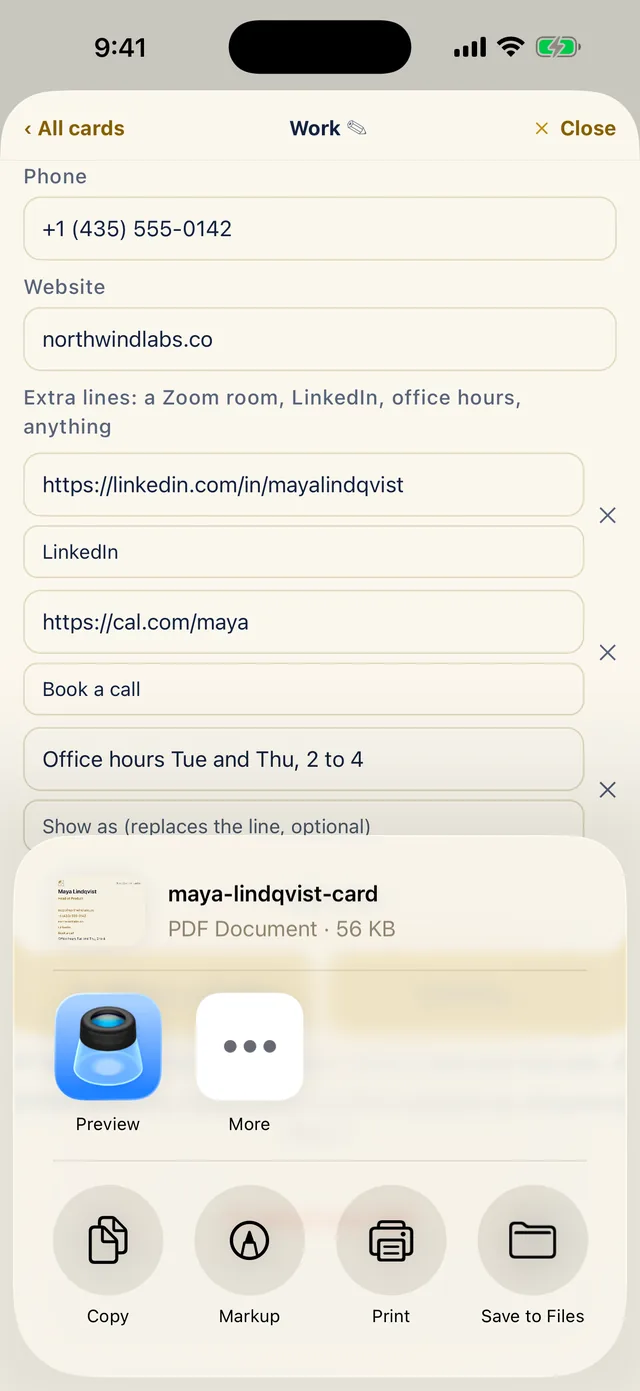
Show as (optional) replaces a long address with a short name, so a booking link can read Book a call. Leave it empty to show the line exactly as you typed it. The X beside a line removes it.
-
Share it as an image or a PDF
Tap Share as image or Share as PDF. The PDF keeps the phone number, email and links tappable for whoever opens it, and the iPhone share sheet takes it from there. Here it offers the file maya-lindqvist-card, a 56 KB PDF, ready to send or save to Files.
A picture cannot be tapped, so choose the PDF when a link has to work. In an image, a line shown with a short name displays only that name, so leave the address visible if you share a picture. To share just one line, hold it on the card. Tapping a line opens it.