 Eisenhour
Guides / Set up your life areas
Set up your life areas
Life areas are how Eisenhour keeps score of balance. Every task and every focus session belongs to one, and each area has a weekly target. In this guide you read the Areas tab, change an area's targets and add a new area.
-
Open the Areas tab
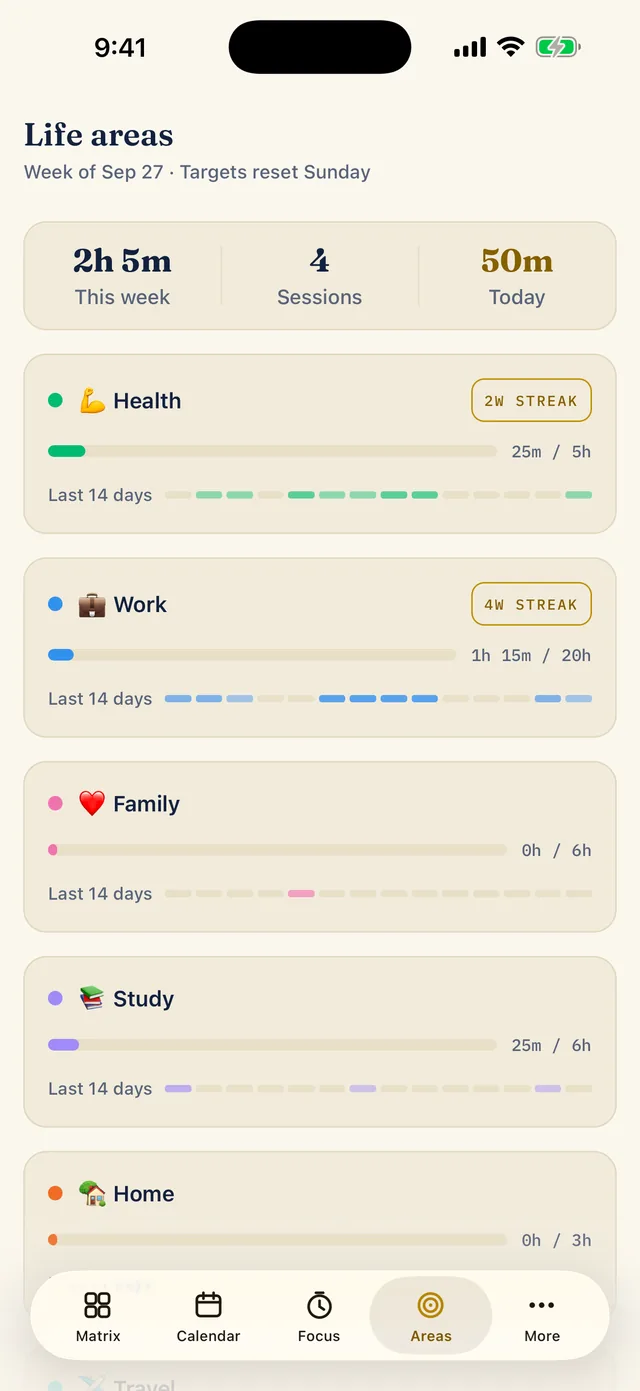
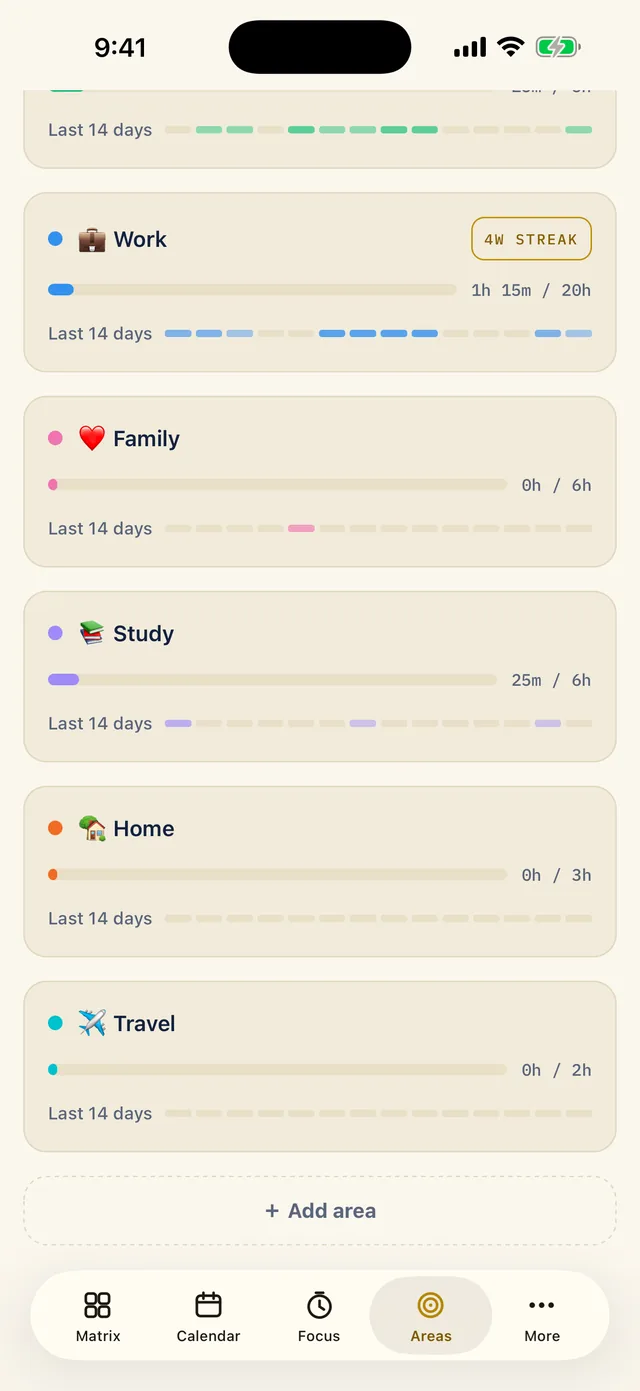
The Areas tab starts with the week (targets reset on Sunday) and a summary card: hours this week, sessions, and minutes today. Each area then shows a bar against its weekly target, a strip for the last 14 days and, once you keep it up, a streak badge such as 4W STREAK.
If you swapped the fourth tab for Card, Areas lives in More instead.
-
Tap an area to edit it
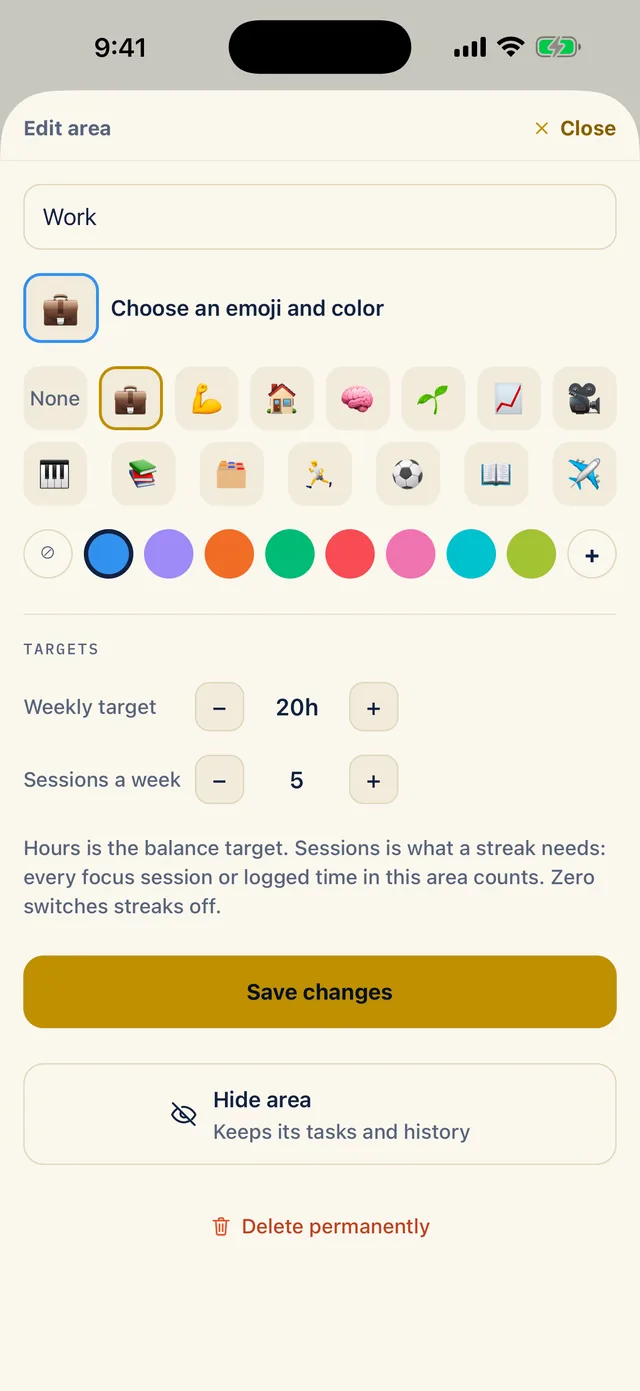
Tap an area to open Edit area. Change the name, choose an emoji and a colour, then set the two targets. Weekly target is the balance you are aiming for in hours, 20h for Work here. Sessions a week is what a streak needs: every focus session or logged time in the area counts, and zero switches streaks off. Tap Save changes.
Hide area keeps its tasks and history. Delete permanently sits at the bottom, so take care with it.
-
Add an area
Scroll to the end of the list and tap Add area. Here the list already holds Health, Work, Family, Study, Home and Travel.
The free version includes two life areas. A third is Pro, and tapping Add area with two in place opens the Pro screen.
-
Name it and set its targets
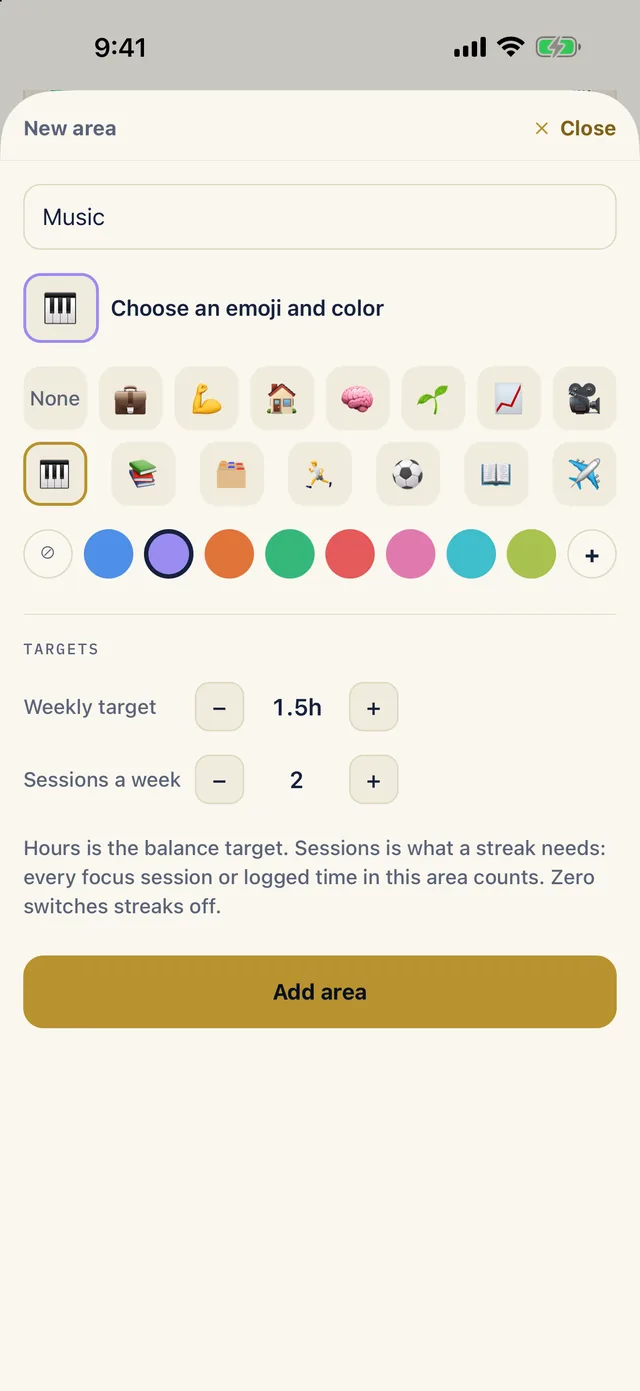
Type a name, choose an emoji and a colour, and set the targets. Here Music gets a piano, purple, 1.5 hours a week and two sessions a week. Tap Add area. From then on you can pick Music on any task, on the timer and when you log time.