 Eisenhour
Guides / Give a task an hour
Give a task an hour
A quadrant says what matters. A time block says when. In this guide you give a sorted task 90 minutes tomorrow morning, then find it on the Calendar tab, next to the events that come from your phone's own calendars.
-
Open the task and find Time block
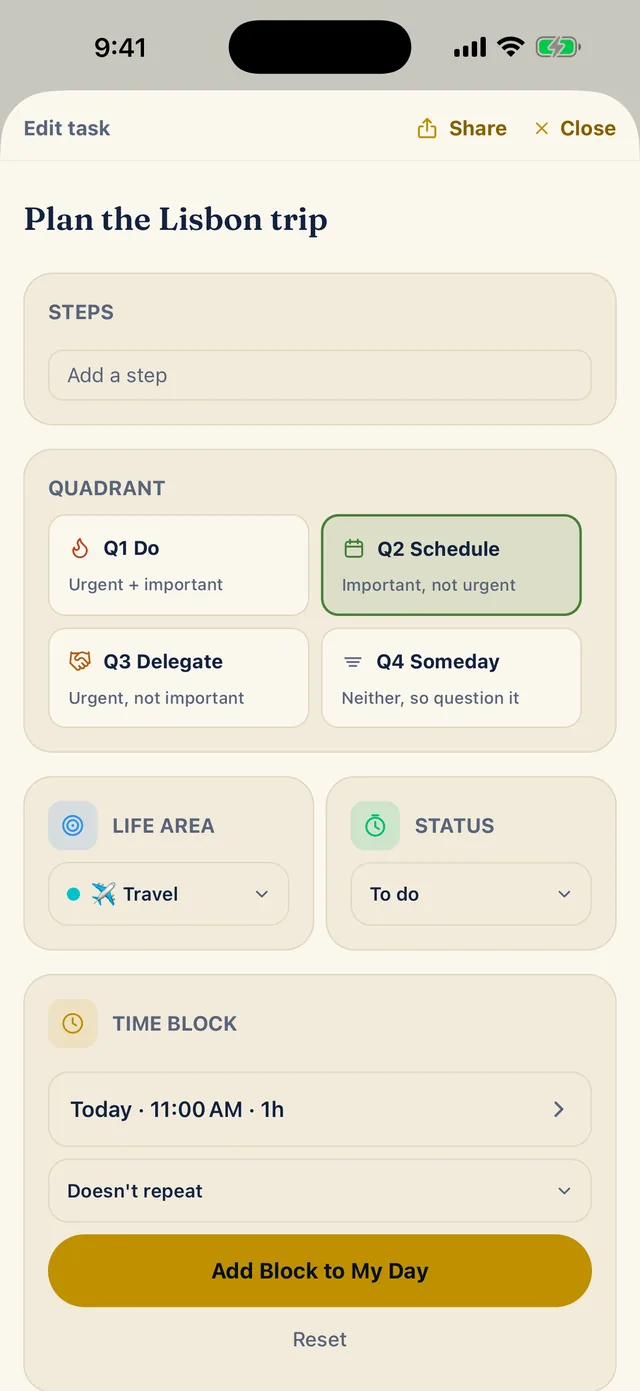
Open a task from the Matrix tab or the Inbox and scroll to the Time block card. It suggests a time, here Today at 11:00 AM for one hour, with the Add Block to My Day button under it. Nothing is scheduled until you tap that button.
-
Pick the day, the start time and the length
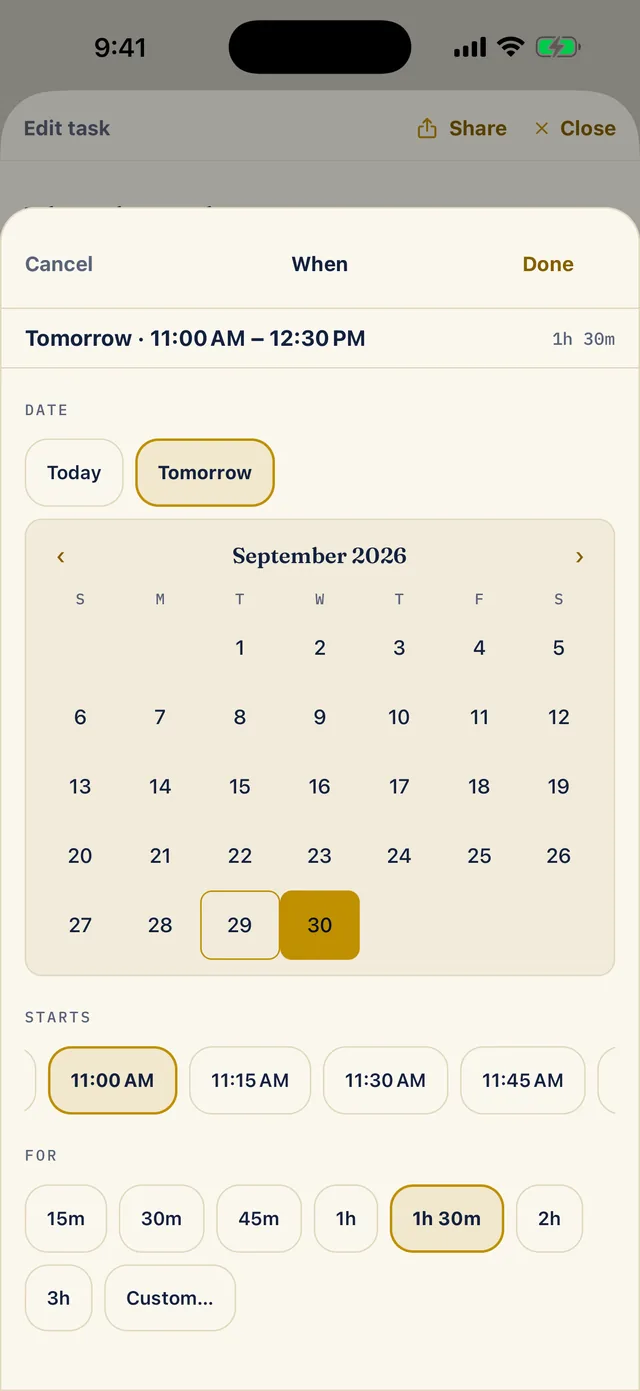
Tap the row with the time to open the When sheet. Choose the date (Today, Tomorrow or a day on the month calendar), a start time in 15-minute steps, and a length from 15 minutes to 3 hours, or Custom.
Here it is Tomorrow at 11:00 AM for 1h 30m. Tap Done.
-
Add the block
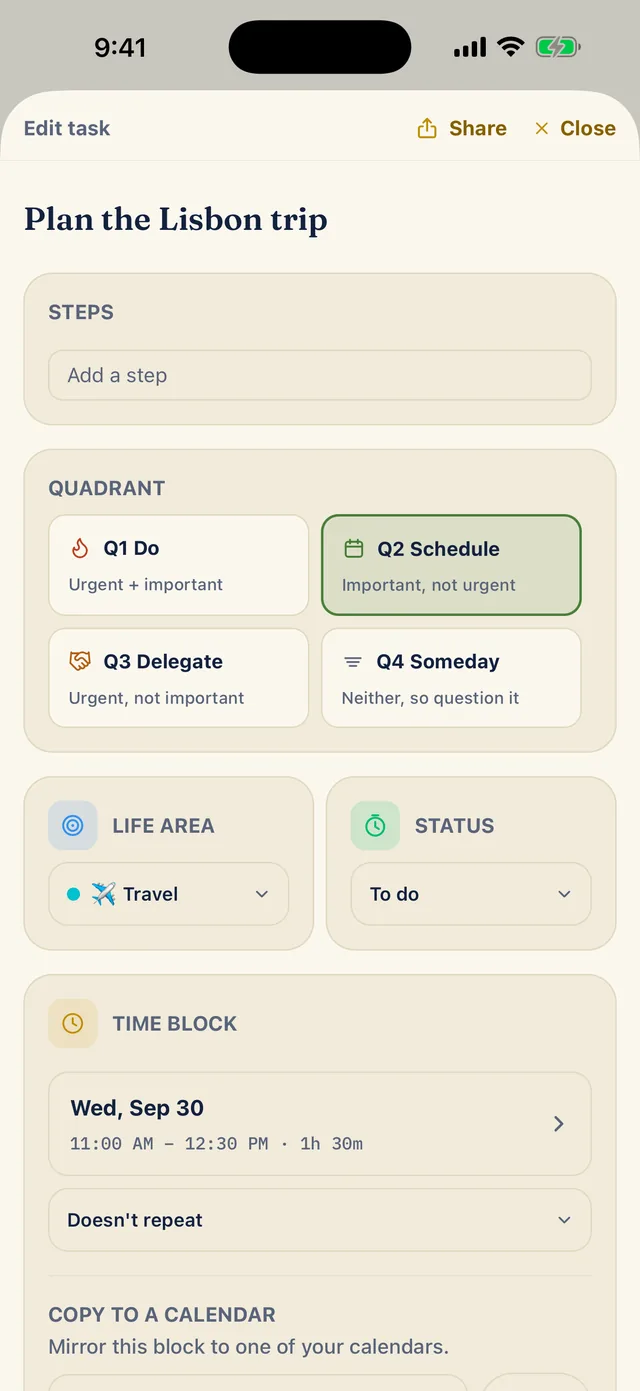
Back on the task, the card now reads Wed, Sep 30, 11:00 AM to 12:30 PM, 1h 30m. Tap Add Block to My Day to save it. The drop-down under the time, Doesn't repeat, is where a block that should come back gets its repeat.
Once a block exists, a Copy to a calendar section appears. It mirrors the block to one of your phone's calendars (Pro).
-
See it on the Calendar tab
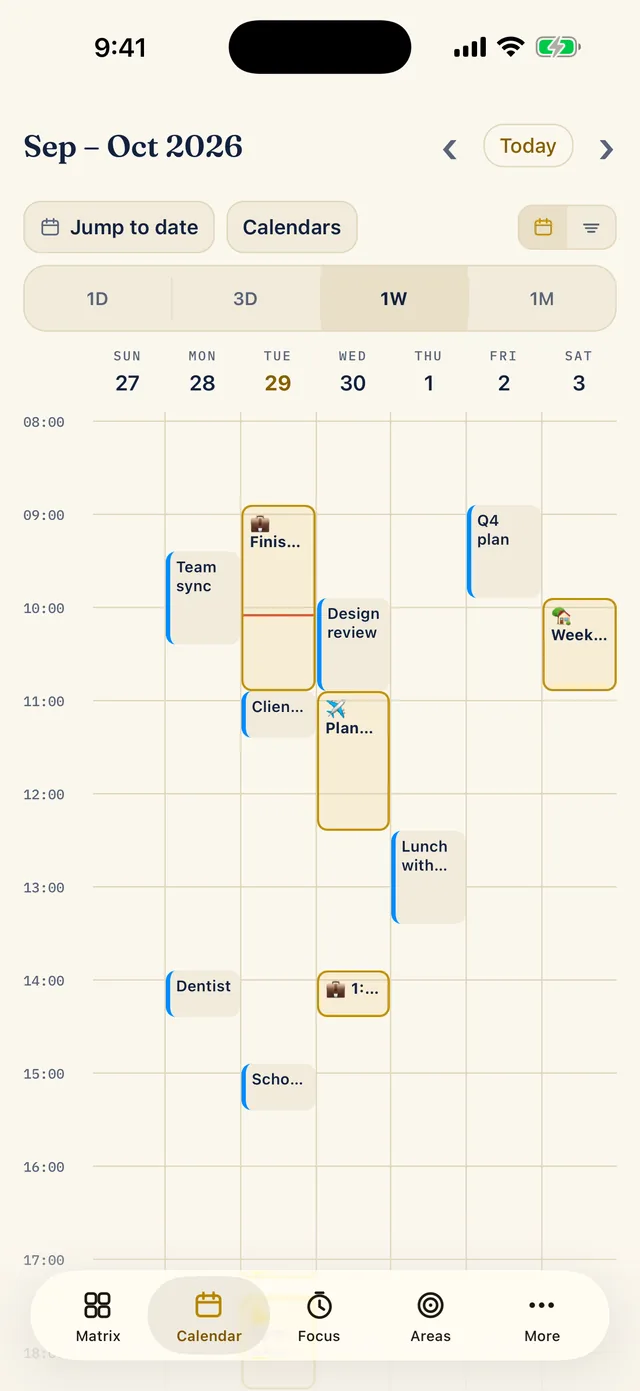
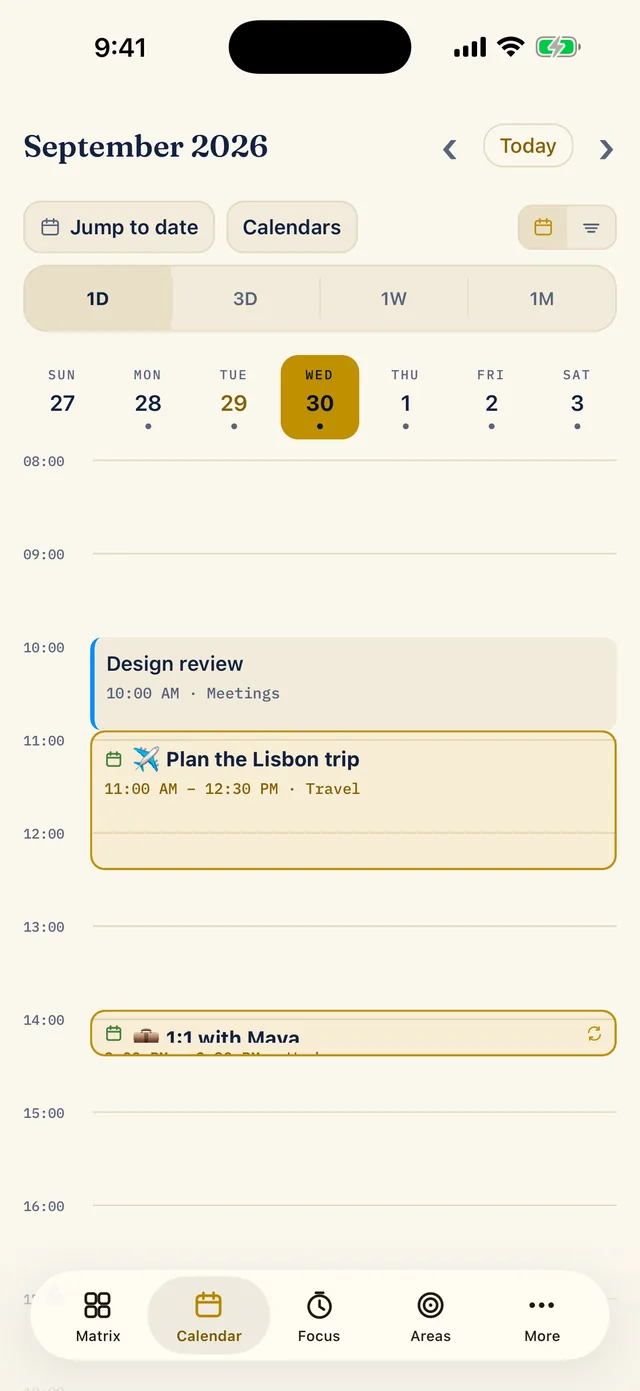
Open the Calendar tab. The block sits on Wednesday the 30th at 11:00, just under Design review, an event from one of your phone's own calendars. Your blocks have a gold outline and a small task icon, and calendar events have a coloured bar on the left.
The free version shows today only, so looking at any other day, as here, is Pro.
-
Zoom out to the week
Tap 1W (Pro) to see the whole week with blocks and events side by side. 1D, 3D, 1W and 1M switch between one day, three days, a week and a month, and Jump to date goes straight to a day (all Pro). The Calendars button picks which of your phone's calendars show beside your plan.