 Eisenhour
Guides / Run a focus session and log your time
Run a focus session and log your time
The Focus tab is a timer that keeps score. Each session is credited to a life area, and the heatmap and the Areas tab add it all up. In this guide you run a 25-minute session on a task, log time you forgot to time, and read the history.
-
Open the Focus tab
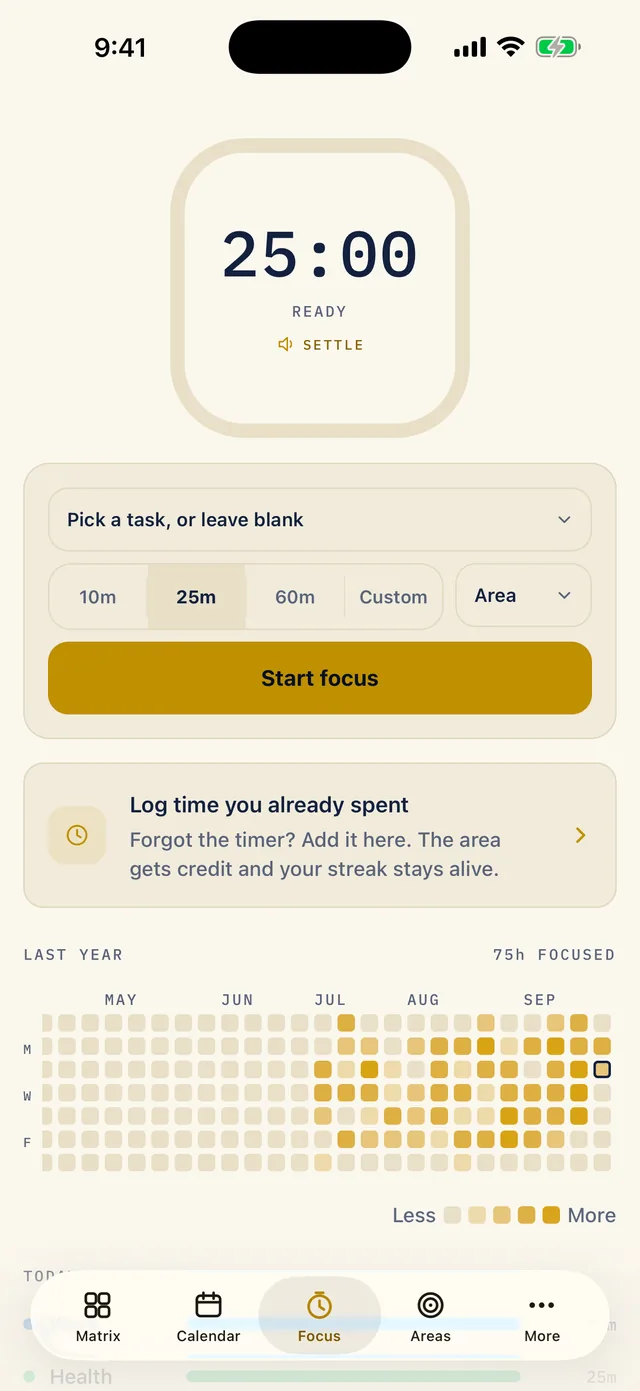
The timer starts at 25:00 and says Ready. Under it are a task picker, the lengths 10m, 25m, 60m and Custom, an Area drop-down and the Start focus button. Further down, Log time you already spent and your heatmap wait for later.
-
Choose a task, or none
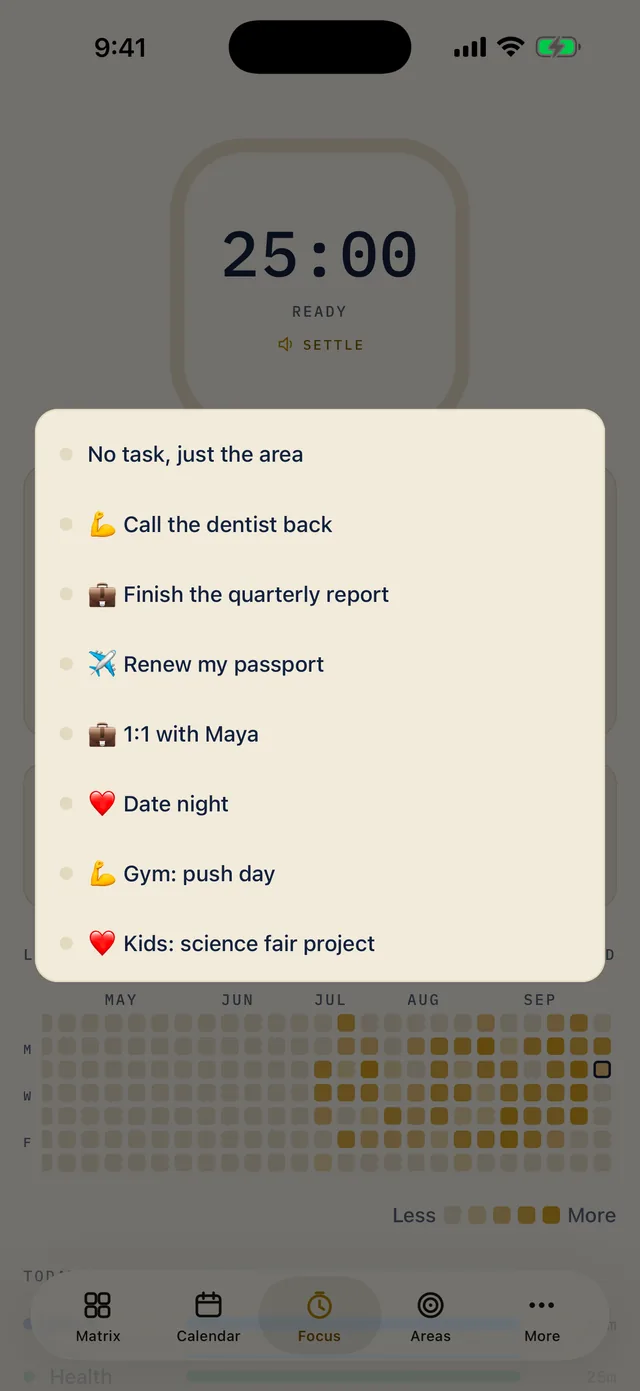
Tap Pick a task, or leave blank. The list starts with No task, just the area, then your open tasks. Pick a task and its life area gets the credit. Choose No task, just the area if you would rather pick the area yourself.
-
Start focus
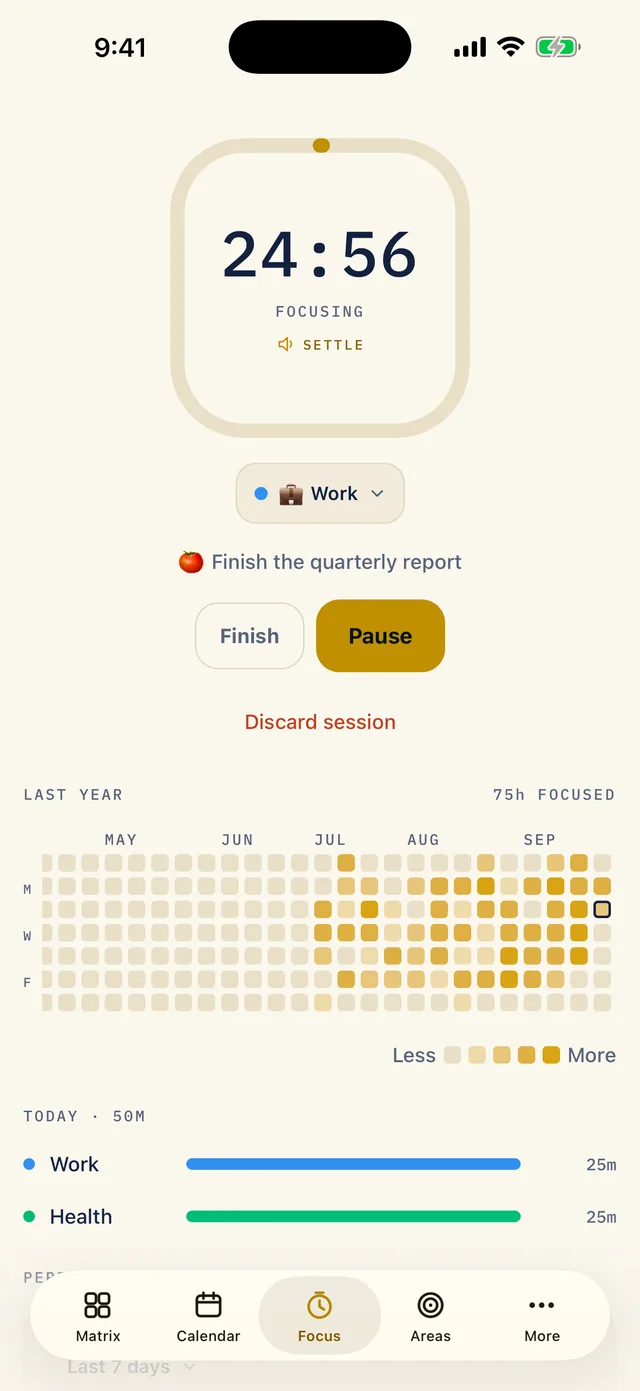
Tap Start focus. The timer counts down (24:56 here), and under it you see the area the session is credited to, Work, and the task. Pause holds the timer. Finish ends the session early and logs the minutes so far. Discard session throws it away and logs nothing.
-
Log time you forgot to time
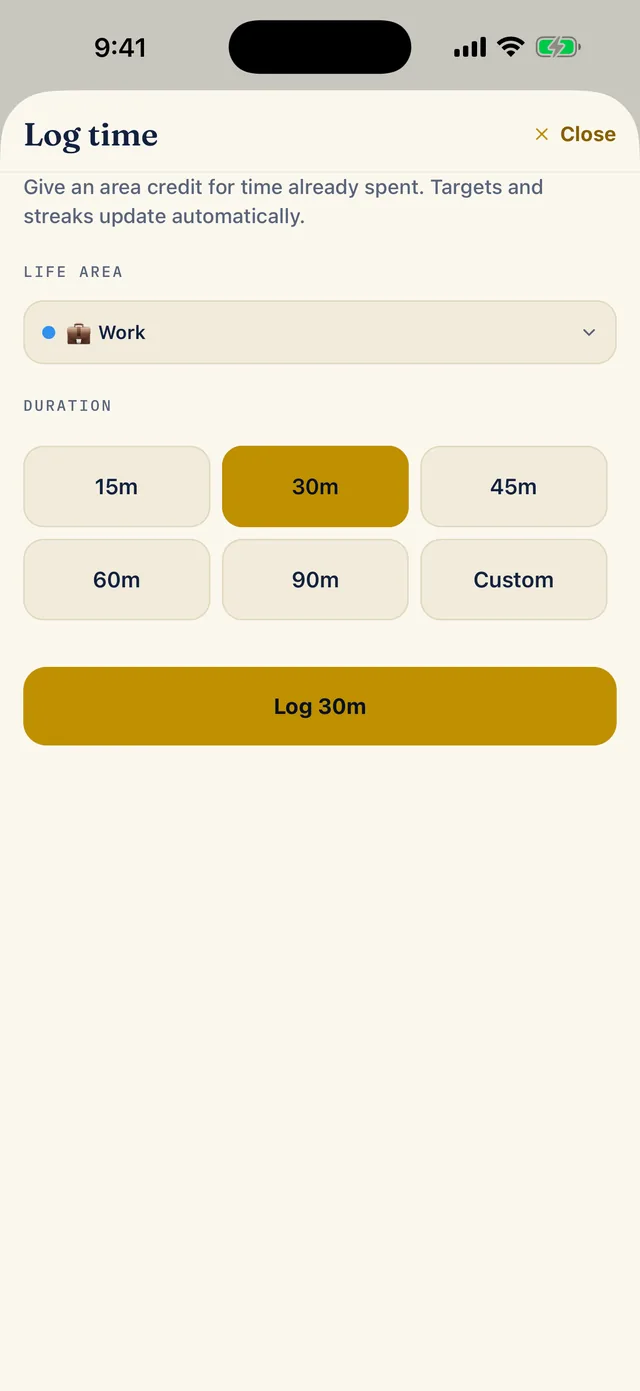
Forgot to start the timer? Tap Log time you already spent. Choose a life area, choose 15, 30, 45, 60 or 90 minutes, or Custom, and tap Log. The area gets the credit, and targets and streaks update on their own.
-
Read the history
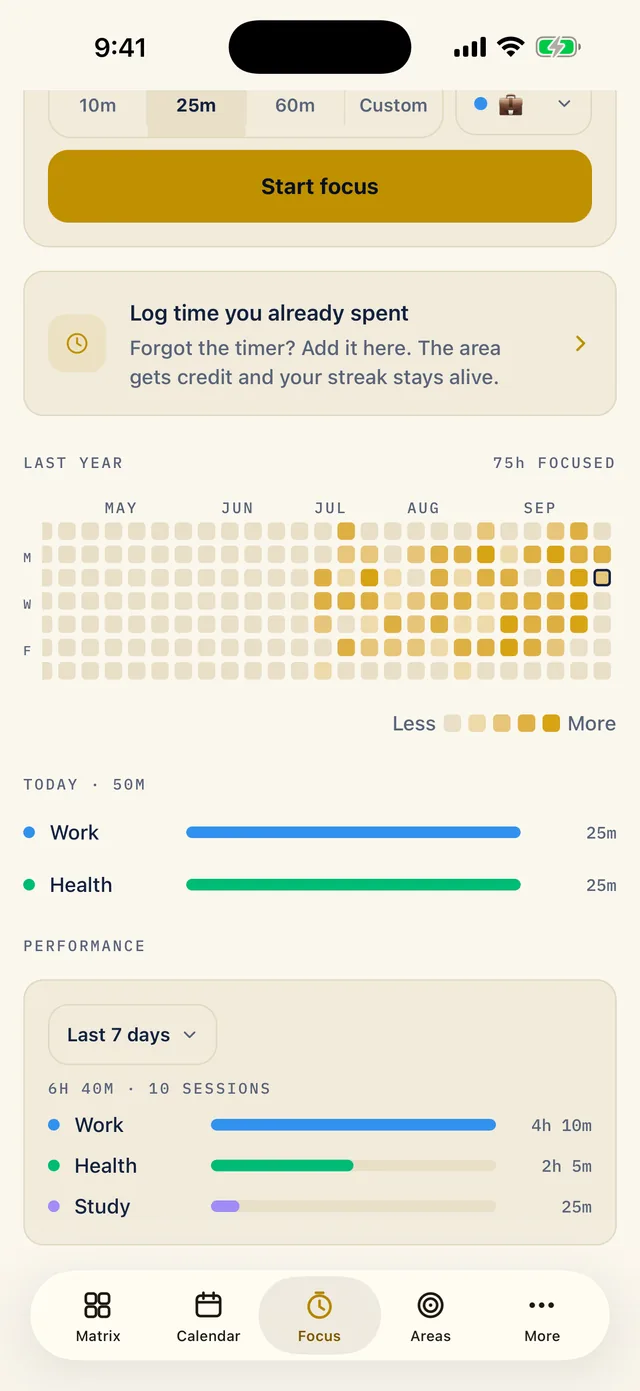
Scroll down the Focus tab. The heatmap shows a year of focused days and the total, 75h here. The full year is Pro; the free version shows the last four weeks. Today lists the minutes by area.
Performance (Pro) shows the hours and sessions by area for a range such as the last 7 days.