 Eisenhour
Guides / Sort your first task
Sort your first task
Eisenhour sorts everything with two questions: is it important, and is it urgent? The answers put a task in one of four quadrants. In this guide you capture one task, find it in the Inbox and decide where it belongs. The task in the screenshots is invented, so use one of your own.
-
Type the task on the Matrix tab
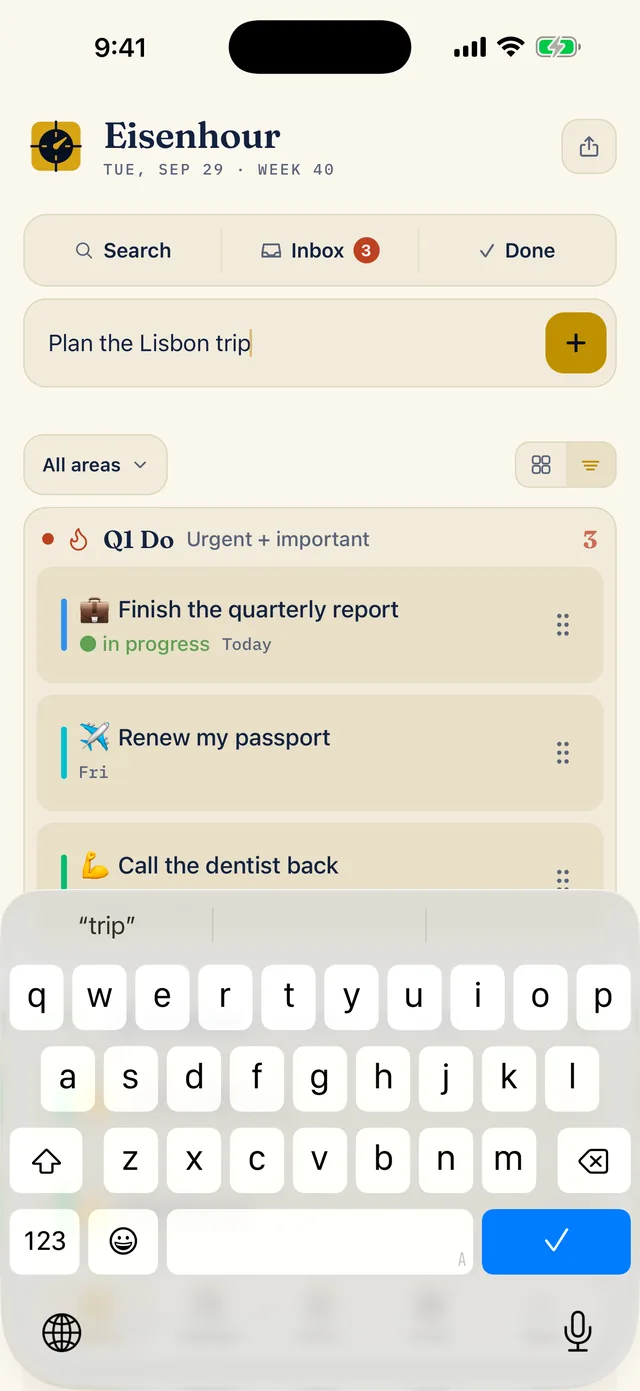
Open the Matrix tab and tap the field that says Throw a task at it. Type what you need to do (here, Plan the Lisbon trip) and tap the plus button. You do not have to decide anything else yet.
-
Find it in the Inbox
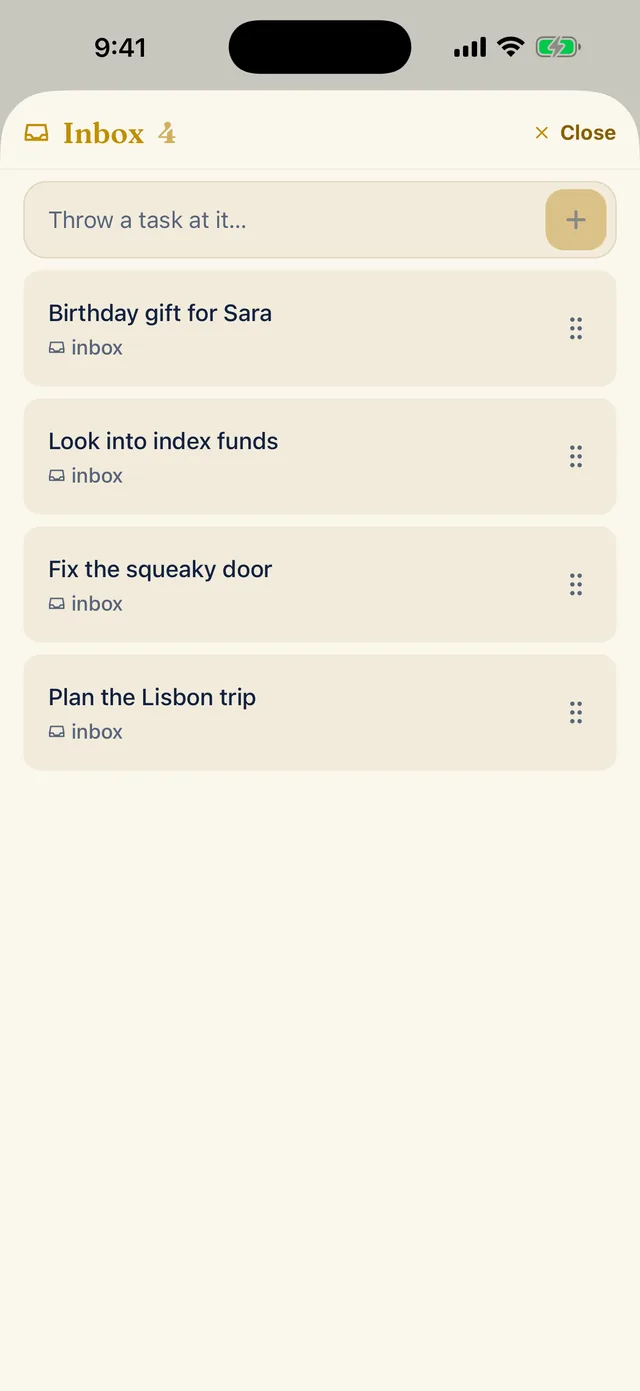
The new task waits in the Inbox, the place for anything you have not decided about yet. Tap Inbox at the top of the Matrix tab to open it. Here the task is at the bottom of a list of four.
-
Open the task
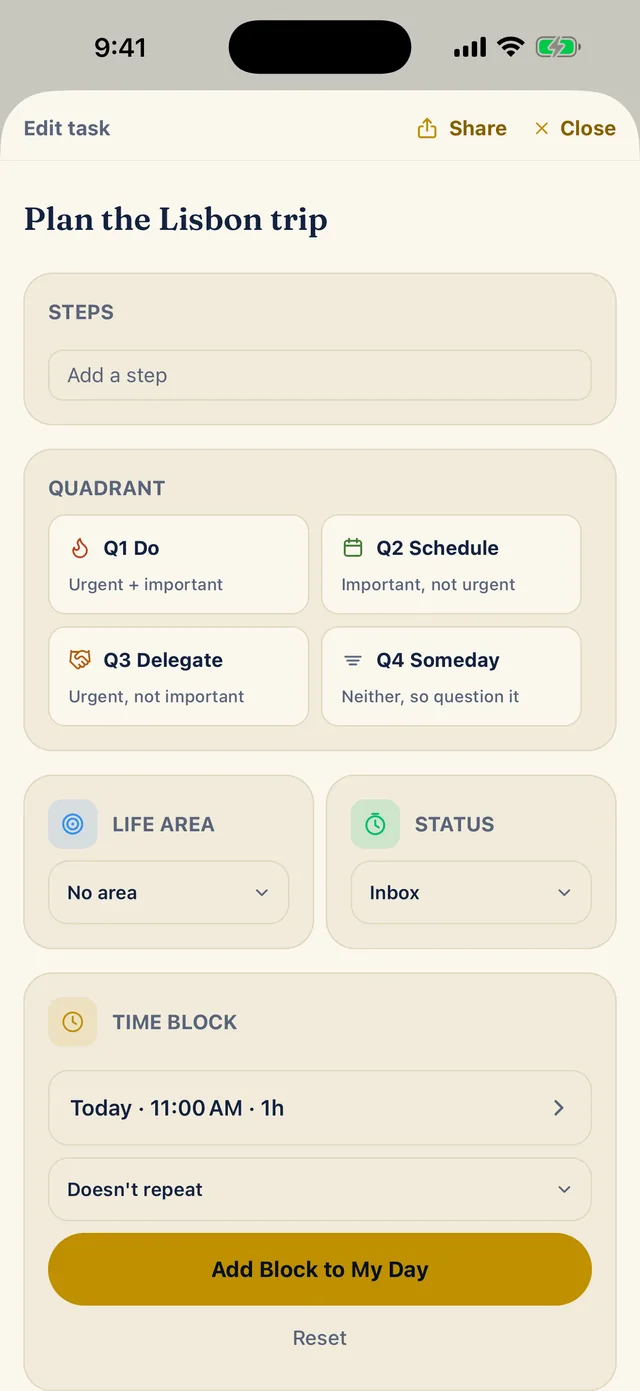
Tap the task to open its sheet. The Quadrant card offers four choices: Q1 Do (urgent and important), Q2 Schedule (important, not urgent), Q3 Delegate (urgent, not important) and Q4 Someday (neither, so question it).
Below the quadrants, Life area says No area and Status says Inbox. A Time block card sits under those, and the next guide uses it.
-
Choose a quadrant and a life area
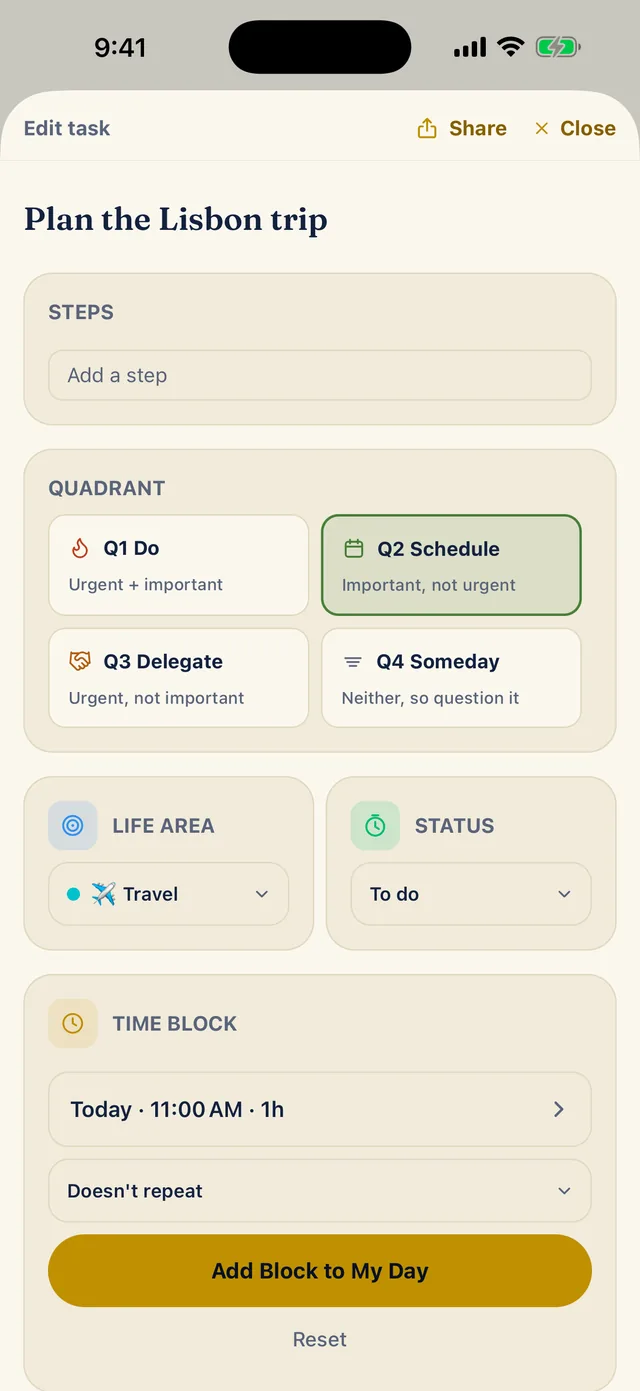
Ask the two questions. A trip worth planning well, with no deadline today, is important but not urgent, so tap Q2 Schedule. Then open the Life area drop-down and pick one, here Travel.
Once the task is sorted, Status reads To do instead of Inbox.
-
See where it landed
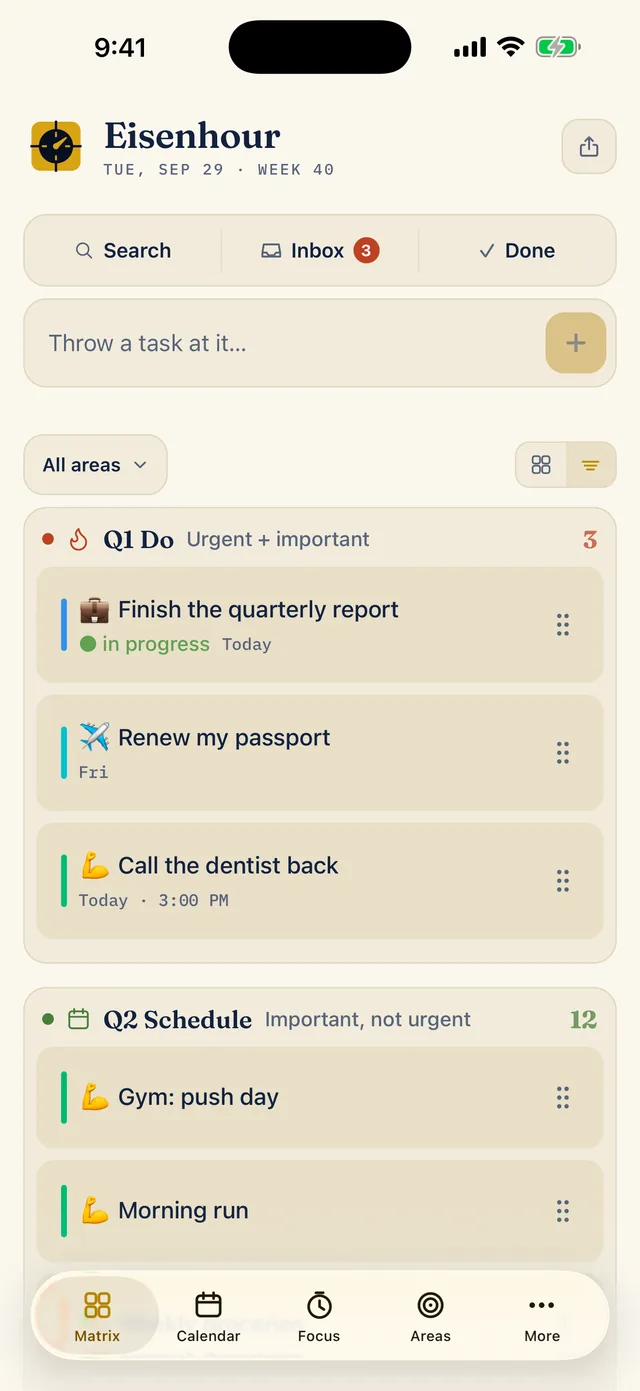
Close the sheet and open the Matrix tab. Tasks are listed by quadrant, Q1 Do first and Q2 Schedule under it, each with its count. The All areas drop-down narrows the list to one life area, and the switch beside it changes between this list and a compact view with one tile per quadrant.